
Owlboy Controls & Settings — Keyboard, Gamepad, Switch
Default Owlboy controls on PC and console, anniversary auto-aim and Z/X/C keys, accessibility toggles, and what difficulty options exist (no redeem codes).
FAQ
What are the Owlboy keyboard controls after the anniversary update?
Does Owlboy have difficulty settings?
How do Owlboy Switch controls work?
Should I turn on auto-aim in Owlboy?
What does Drop Gunner On Dodge do?
How do I reduce screenshake in Owlboy?
Can I remap Owlboy controls?
How do Owlboy controls work at a high level?
You pilot Otus in 360° flight while separately aiming whoever you carry as a gunner. That twin-stick layout is why the anniversary update’s auto-aim toggle matters: with it on, D-Pad Studio states the game can be played without a second thumbstick, and with it off you retain classic manual aiming.
Core verbs stay the same across PC and consoles:
- Fly / hover — jump then flap; Otus moves in full 2D space
- Roll / dodge — short evasive burst; hold Roll during a roll for Super Dash after the November 2026 patch (details)
- Carry & throw — pick up objects, friends, or gunners; throws now follow Otus’s flight direction when you press Throw (anniversary patch)
- Gunner fire & spin — your passenger shoots; Otus can spin-attack on his own
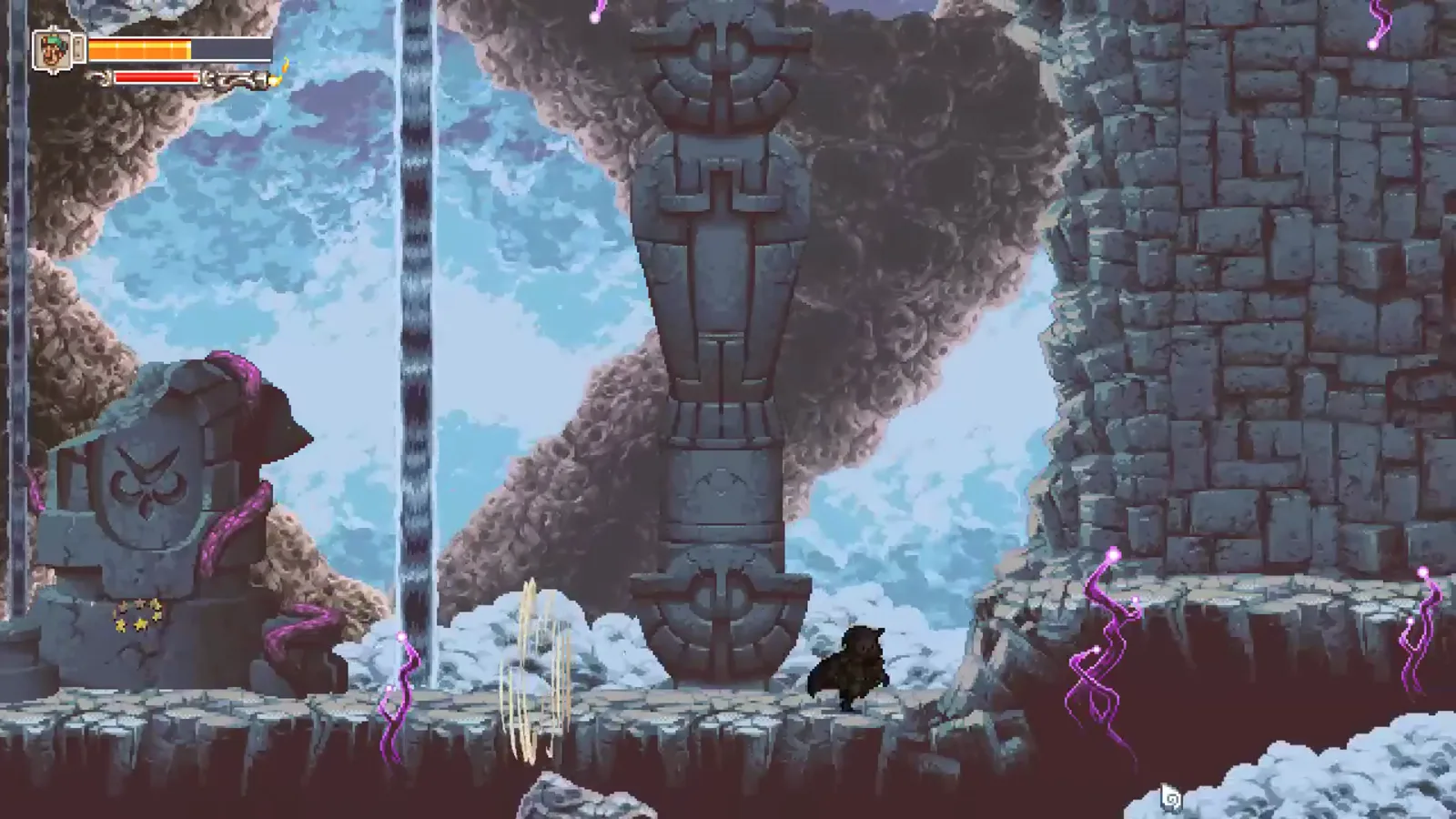 Owlboy is a one-time purchase with no redeem codes—settings changes are all in-game.
What are the PC keyboard controls?
Anniversary update defaults (Steam official posts)
| Input | Action |
|---|---|
| Arrow keys | Move / fly Otus (keyboard-only layout) |
| Z | Throw |
| X | Shoot |
| C | Spin Attack |
| F (hold) | Fast-forward cutscenes |
| Roll key (see in-game Controls) | Roll; hold for Super Dash |
Jump, interact, pause, and gunner swap still use the bindings listed under Options → Controls in your build—those labels were not rewritten in the public patch text, so read the menu once on a fresh install.
Keyboard-only setup checklist
- Update to the November 2026 anniversary patch
- Enable Auto-aim in Options if you are not using a second aiming device
- Confirm Z / X / C in the Controls screen match Throw / Shoot / Spin
- Optional: turn off Screenshake and Flash Effects for comfort
What about gamepad and Nintendo Switch controls?
Steam lists full controller support for the PC build. Console ports (including Nintendo Switch) map the same actions to platform-standard buttons:
| Action | Where to verify |
|---|---|
| Fly, roll, dodge | Pause → Controls on your device |
| Gunner aim | Right stick or auto-aim when toggled on |
| Throw / Shoot / Spin | Shoulder and face buttons per platform layout |
| Fast-forward cutscenes | Right Bumper default per anniversary release notes |
Walkthrough footage on Switch still shows shoulder triggers for throw versus gunner fire even before the update—treat the in-game Controls page as the second source alongside platform-agnostic Steam documentation.
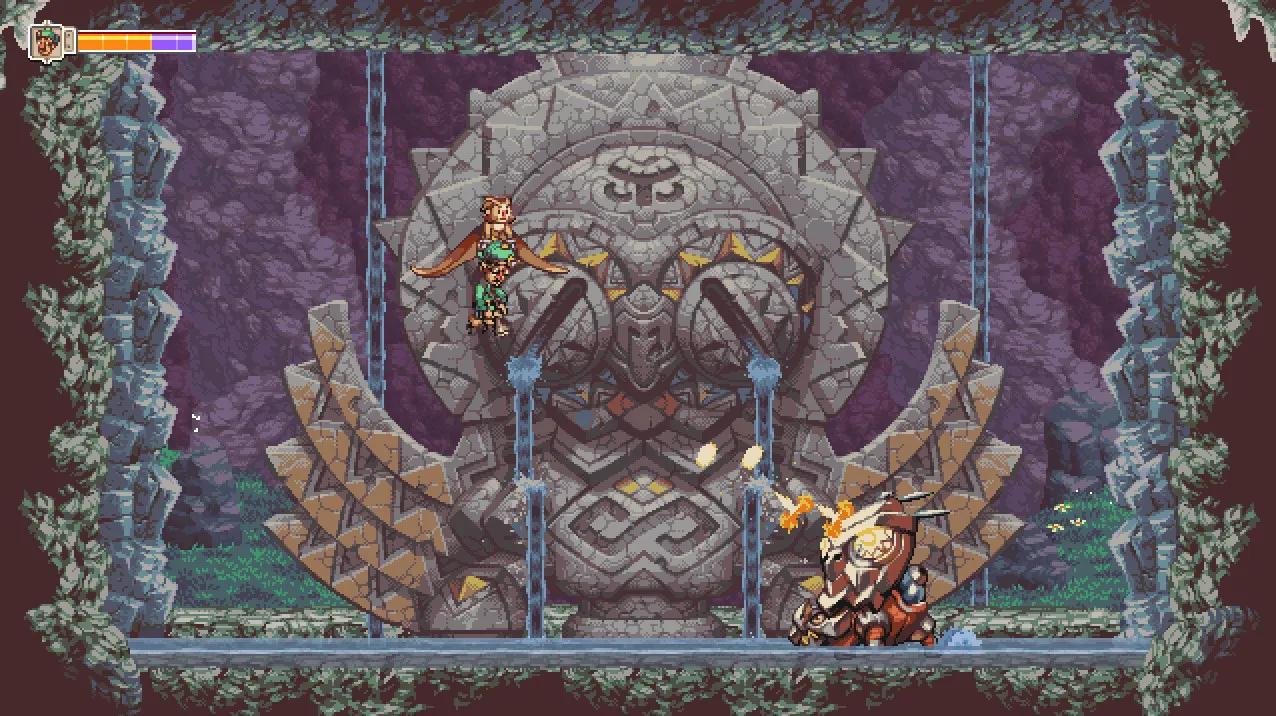 If you only play handheld Switch, consider enabling auto-aim and Drop Gunner On Dodge together; dropping a gunner during a roll is part of the new stun toolkit documented in the anniversary update guide.
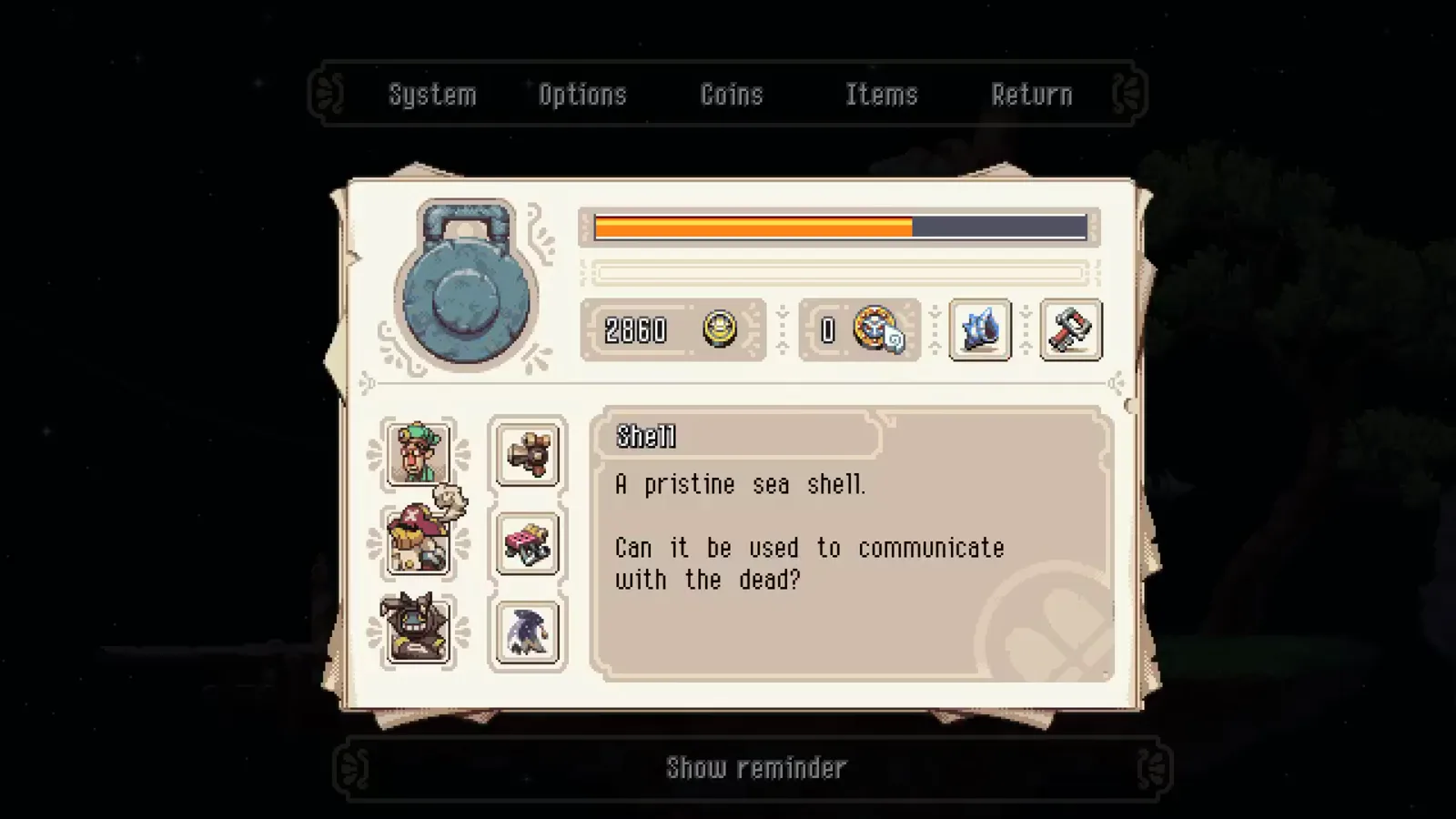
Which Owlboy settings should I change first?
Open Options after patching:
| Toggle | Why change it |
|---|---|
| Auto-aim | Single-stick or keyboard-only play |
| Screenshake | Motion sensitivity / readability |
| Flash Effects | Photosensitivity |
| Drop Gunner On Dodge | Faster repositioning; synergy with drop-stuns on enemies |
These are accessibility and control assists, not a difficulty slider. Owlboy does not expose Easy/Normal/Hard in official materials—boss HP and patterns shifted in the anniversary Balancing section instead.
How does Super Dash fit into movement?
After the update, hold Roll while rolling to chain Super Dash—a longer burst in your current direction. Use it like a sprint in the air or on the ground, then release to resume normal rolls.
 Pair Super Dash with the beginner guide routing tips when you backtrack for Buccanary coins or Golden Disks.
Where should I go next?
- Patch changelog context — /guides/anniversary-update-guide/
- First-hour routing — /guides/beginner-guide/
- Hour expectations — /guides/how-long-to-beat/
- First major boss — /bosses/vellie-caves-first-boss/
Related videos
Related Articles
bosses
Owlboy Solus Boss Fight Guide — Final Boss Phases
Solus final boss guide for Owlboy: break red, green, and blue relic rings with Twig, Geddy, and Alphonse, then grapple pink fireballs—plus v1.0 tips.
bosses
Owlboy Vellie Caves First Boss Guide — Armor Break
Beat the Vellie Caves first boss in Owlboy: break the mask with a Geddy smash, then shoot the weak point—plus flying phase tips and v1.0 notes.
guides
Owlboy 100% Guide — Achievements, Trophies & Collectibles
Owlboy platinum and 100% checklist: all 12 Steam achievements vs 24 console trophies, missable Good Boy, coin and trinket goals, Golden Disks, and Boguin Cannon.
Was this helpful?
Thanks for the feedback!